The Meeting Booked Slack Card: What It Shows and What You Can Do
When a lead books a meeting through Knock, Knock posts a meeting card in Slack. The card gives your team everything about the lead, the company and the meeting in one place, and lets reps manage the meeting without leaving Slack. Every update after the booking - LinkedIn outreach, new attendees, organizer changes, cancellations - is logged in the card's thread.
Where the card is sent
Knock sends the meeting card to:
- The Knock Knock Updates Slack channel (for team visibility)
- The meeting routing or segment channel set in your routing configuration
- The meeting owner's Slack DM (personal notification)
The meeting owner also gets the calendar invite and a confirmation email.
What the card shows
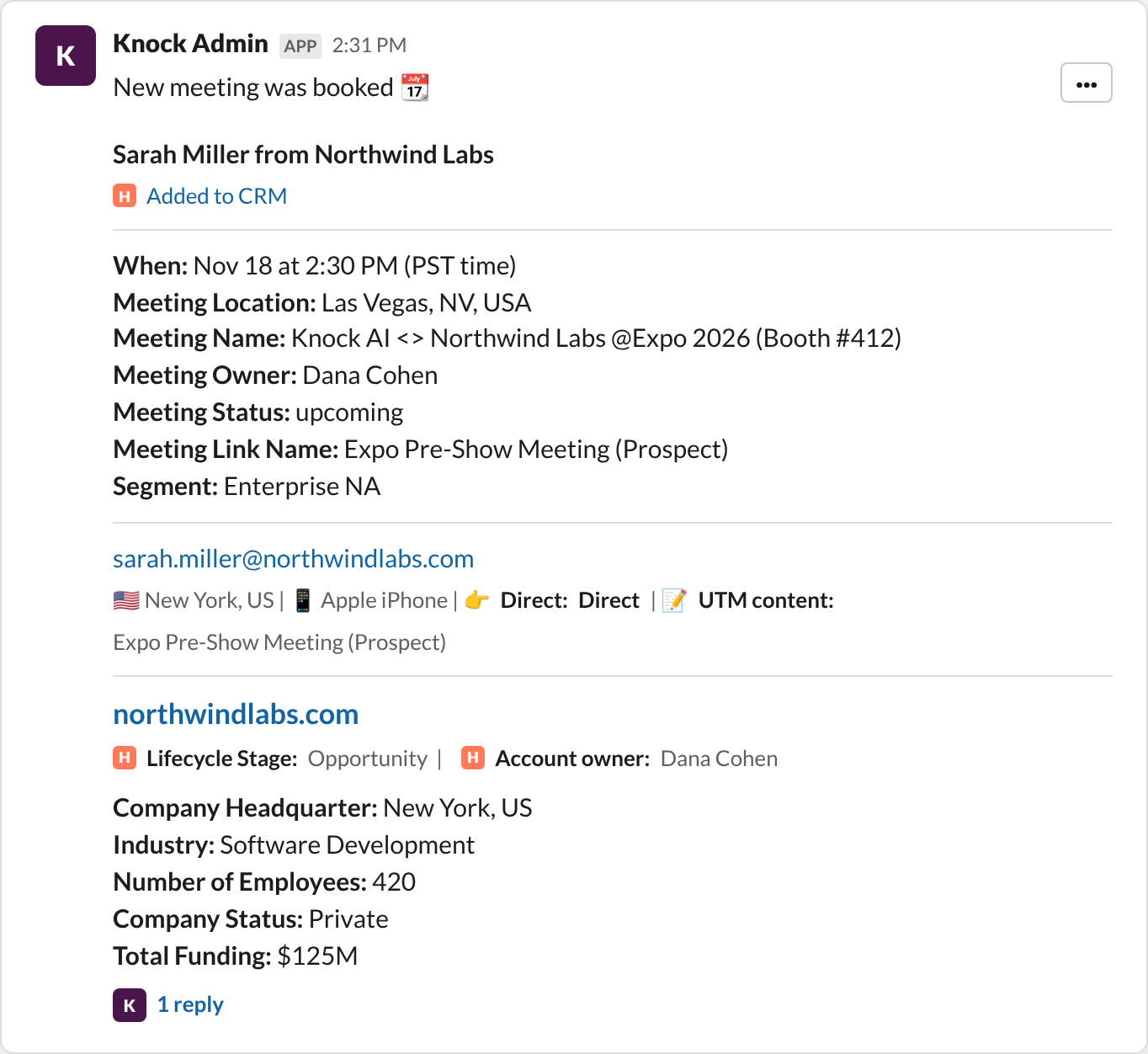
Lead
Field | What it means |
Name and company | The lead who booked, for example Sarah Miller from Northwind Labs. |
CRM status | The CRM icon and the lead's status in your CRM, for example Added to CRM. Click it to open the record in your CRM. |
Email | The lead's email, shown under the meeting details. |
Meeting details
Field | What it means |
When | Date and time of the meeting, with the timezone. |
Meeting Location | In person meetings only. The location and details the rep set on the meeting link, for example a booth and hall at an event. |
Meeting Name | The calendar event title. |
Meeting Owner | The rep who owns the meeting. Updates if the organizer is changed. |
Meeting Status | Upcoming, or cancelled once the meeting is cancelled. |
Meeting Link Name | The meeting link the lead booked through, so you know which page or campaign drove the meeting. |
Segment | The routing segment the lead matched. |
Session data
Where the lead came from: location, device, source and channel, and UTM content when available (for example Direct : Direct). This is based on the last engagement.
Company
- Company domain
- Lifecycle stage and account owner from your CRM
- Company headquarters, industry, number of employees, company status (public or private) and total funding
Work experience (optional)
A short summary of the lead's career from the last 10 years - one line per company with the role and how long they were there. The current role is marked now. Education is shown below it when available.
What you can do from the card
The buttons show while the meeting is upcoming.
Join the Meeting
Opens the meeting link.
Reschedule
Opens the scheduling page for the same meeting link, so the rep can move the meeting to a new time. The calendar event, emails and card are updated.
Add members
Add teammates or anyone else to the meeting.
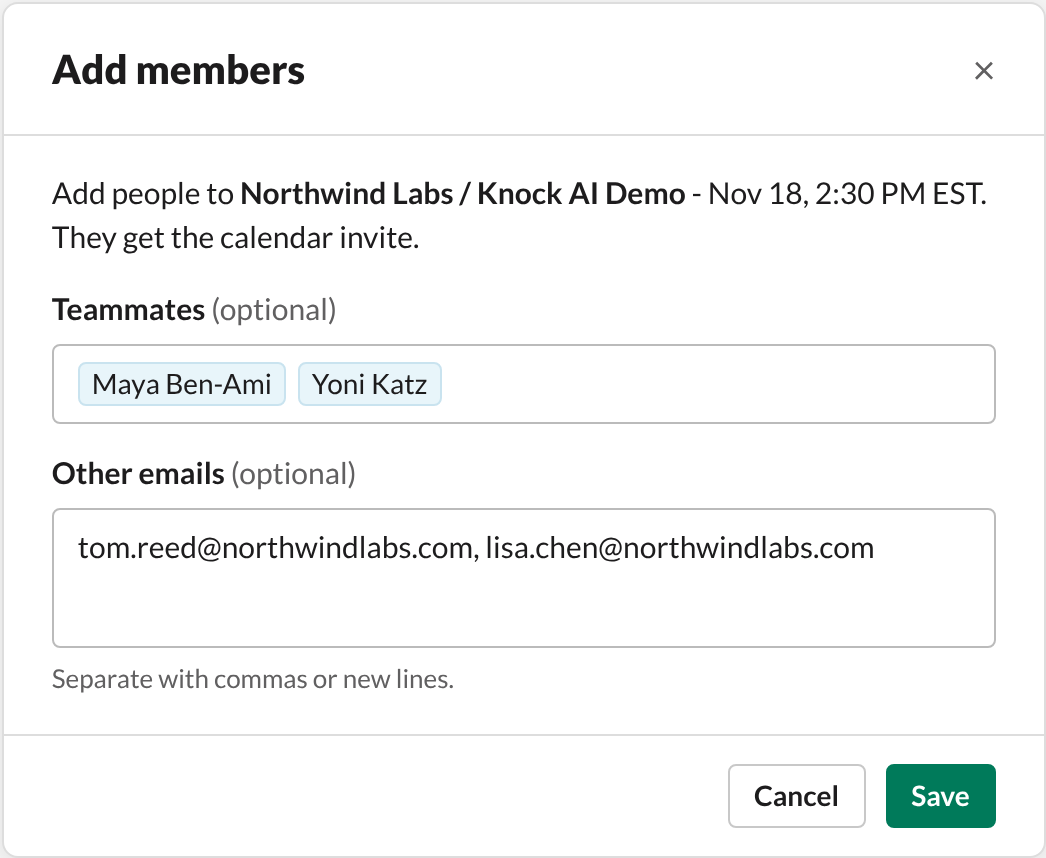
- Click Add members.
- Pick teammates from Slack, or type emails (separate with commas or new lines).
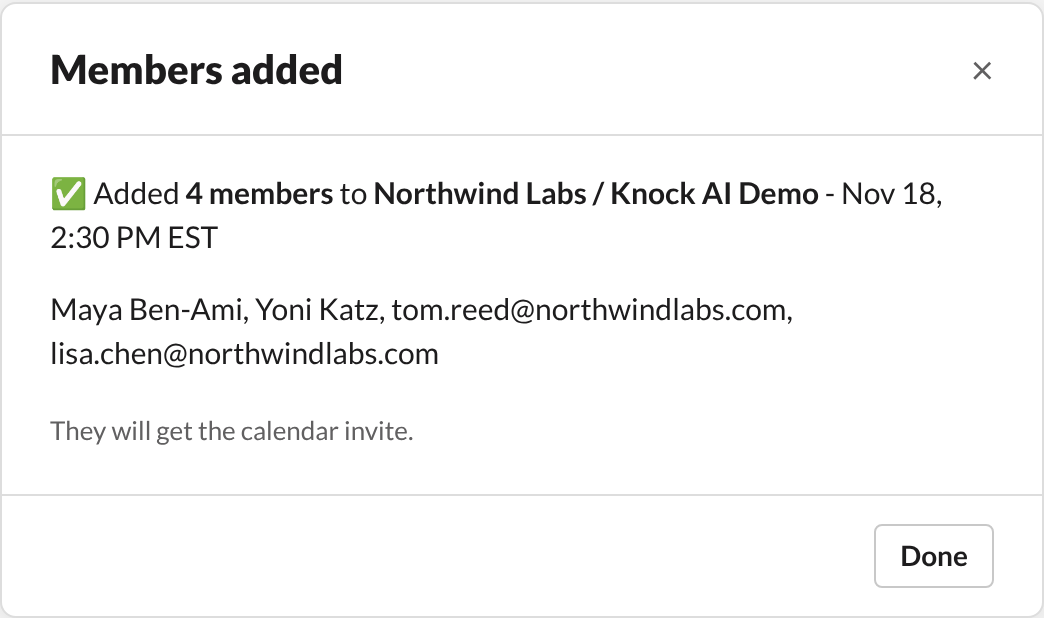
- Click Save. A confirmation shows who was added.
What happens next:
- Everyone added gets the calendar invite.
- People outside your company are enriched, and added to your contacts.. If Knock finds their LinkedIn profile, it sends them a LinkedIn connection request from the meeting owner.
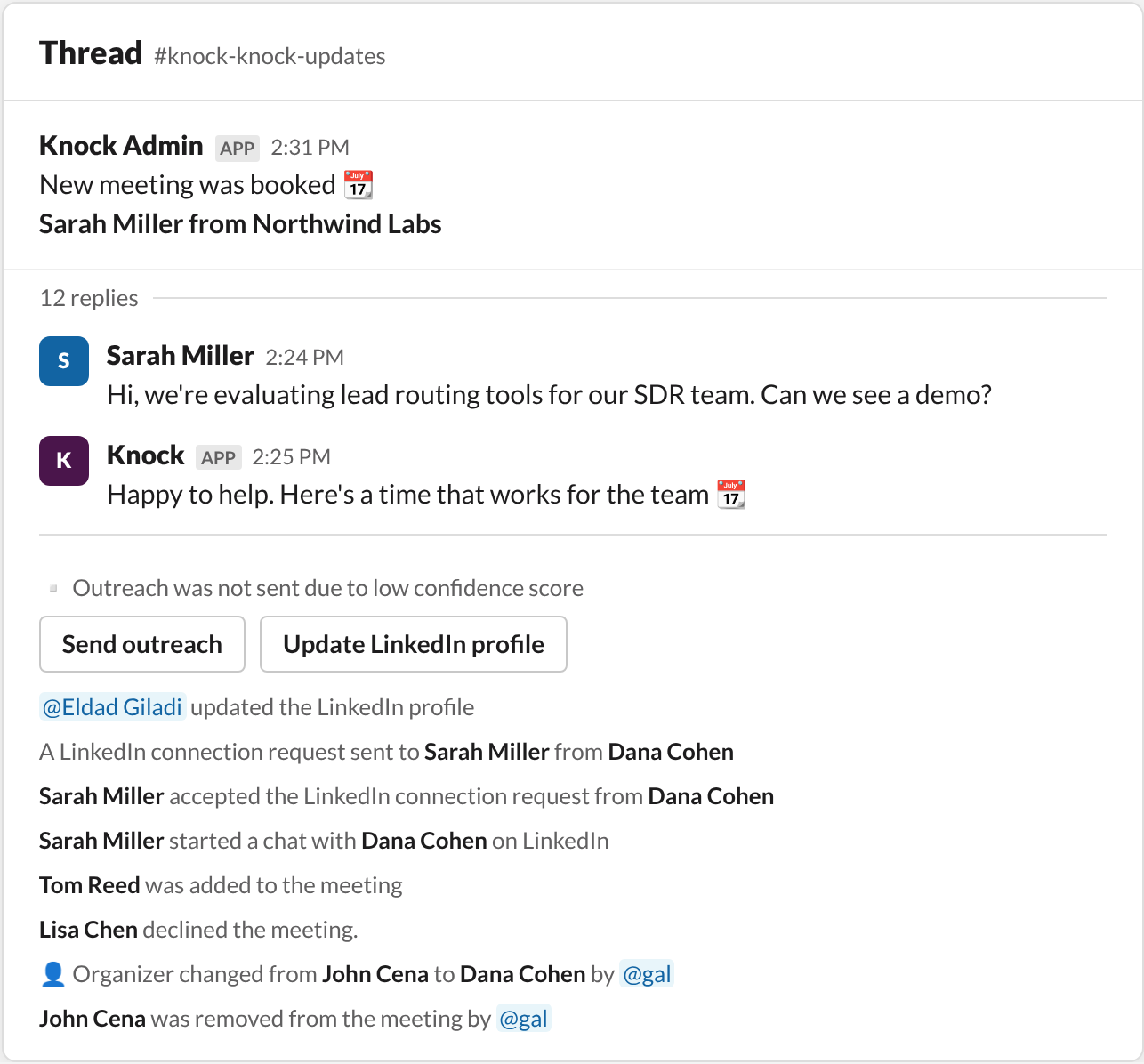
- The thread shows who was added.
Cancel
Cancels the meeting for everyone.
- The event is removed from all calendars.
- Everyone on the meeting gets a cancellation email, with a link to book a new time.
- The meeting is marked cancelled in Knock and your CRM.
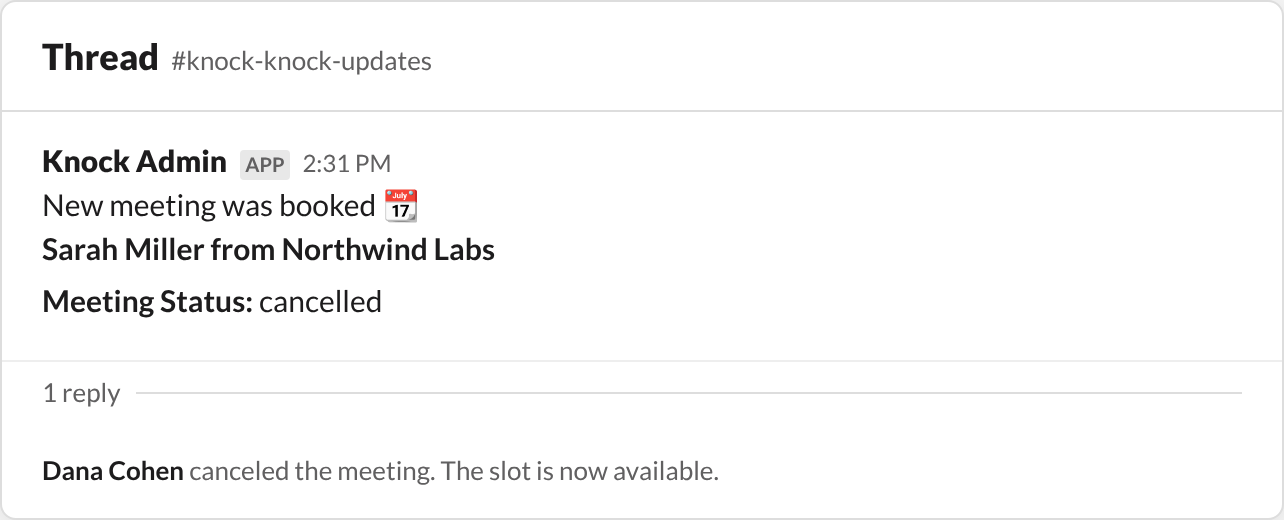
- The card status changes to cancelled and the thread shows who cancelled.
More actions (··· menu)
The ··· menu on the top right of the card holds Edit Details and Edit organizer.
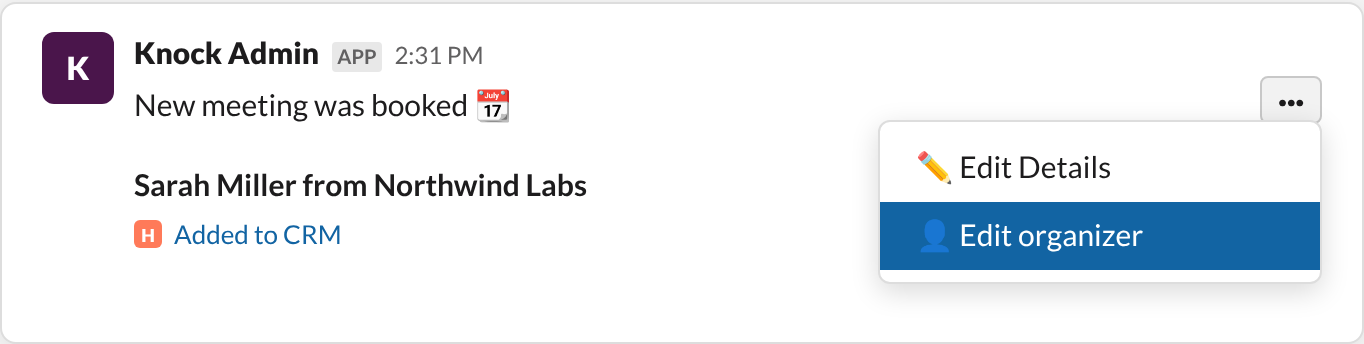
Edit Details
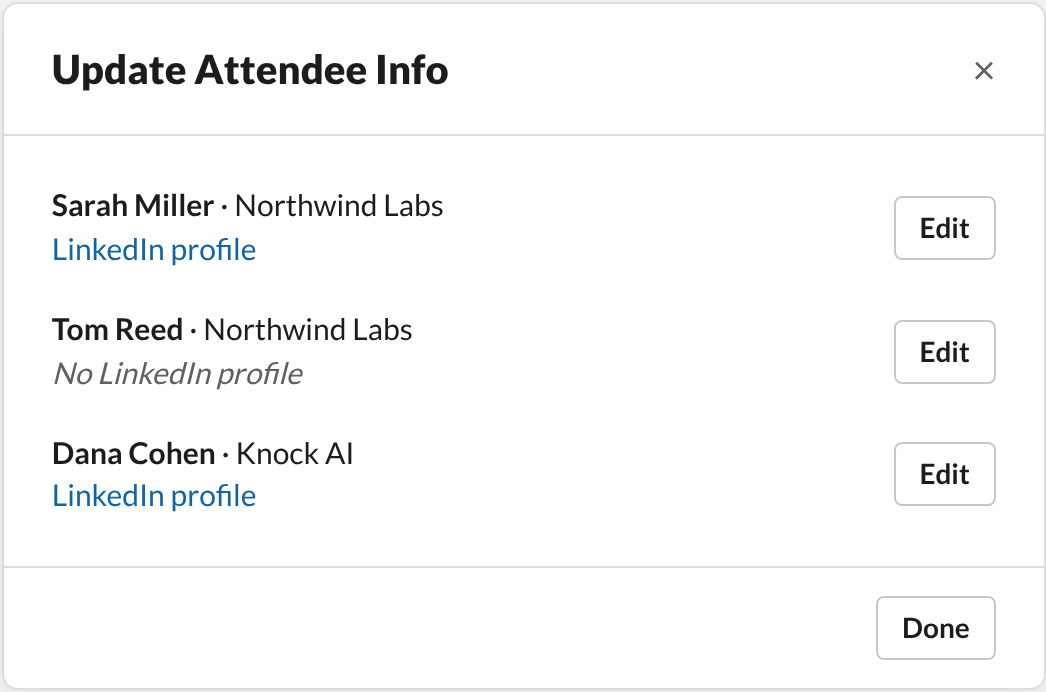
Fix a name or LinkedIn profile for anyone on the meeting.
- Click ··· → Edit Details. You'll see everyone on the meeting, with leads at the top.
- Click Edit next to a person.
- Update the name or LinkedIn profile and click Save. Back returns to the list without saving.
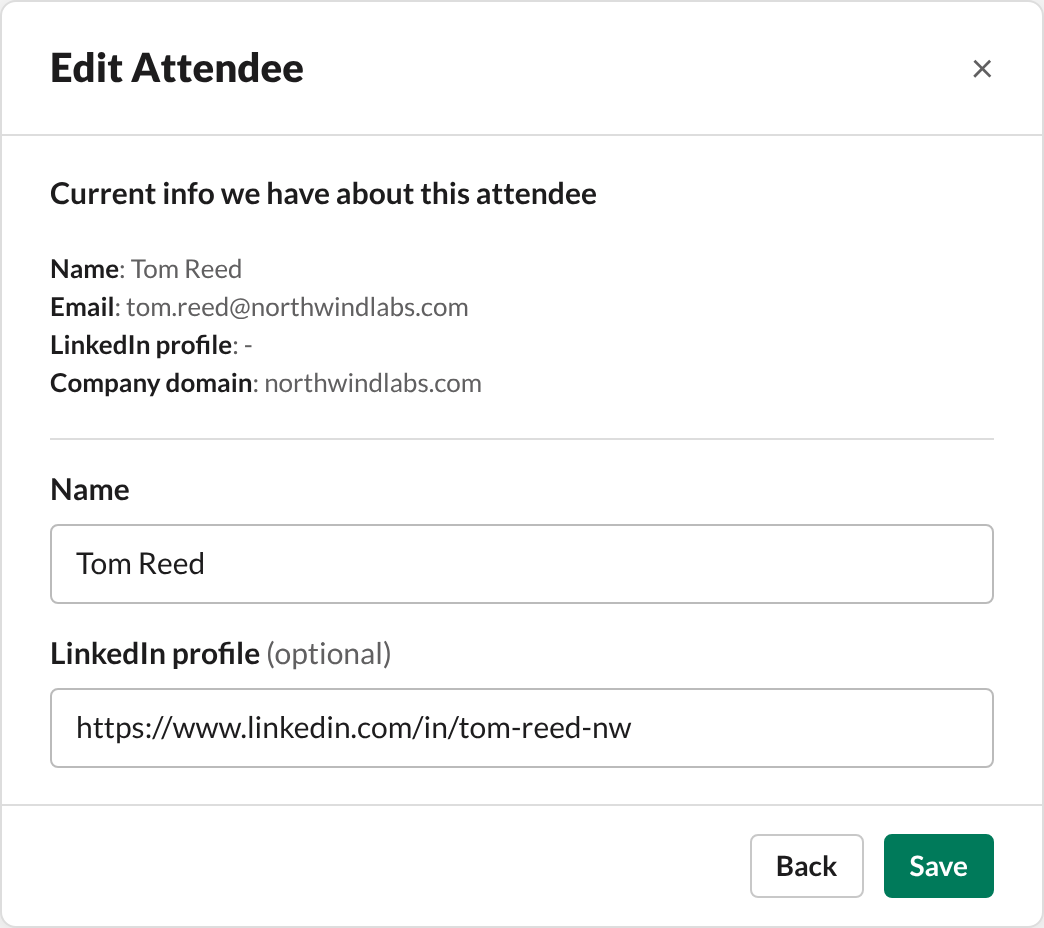
When you save:
- A new LinkedIn profile re-runs enrichment for that lead.
- Knock, your CRM, the meeting emails and the meeting agenda are updated.
- For reps, the change applies to every future meeting they join.
Edit organizer
Move a meeting to a different rep, for example when the original rep is out or the account belongs to someone else.
- Click ··· → Edit organizer.
- Pick the new organizer. Only Slack members with a connected calendar are listed.
- Choose whether to keep the current organizer on the meeting as an attendee (default) or remove them.
- Knock checks the new organizer's calendar. If they have another meeting at that time, or the time is outside their availability, you'll see a warning. You can still save.
- Click Save (or Save anyway when there's a warning).
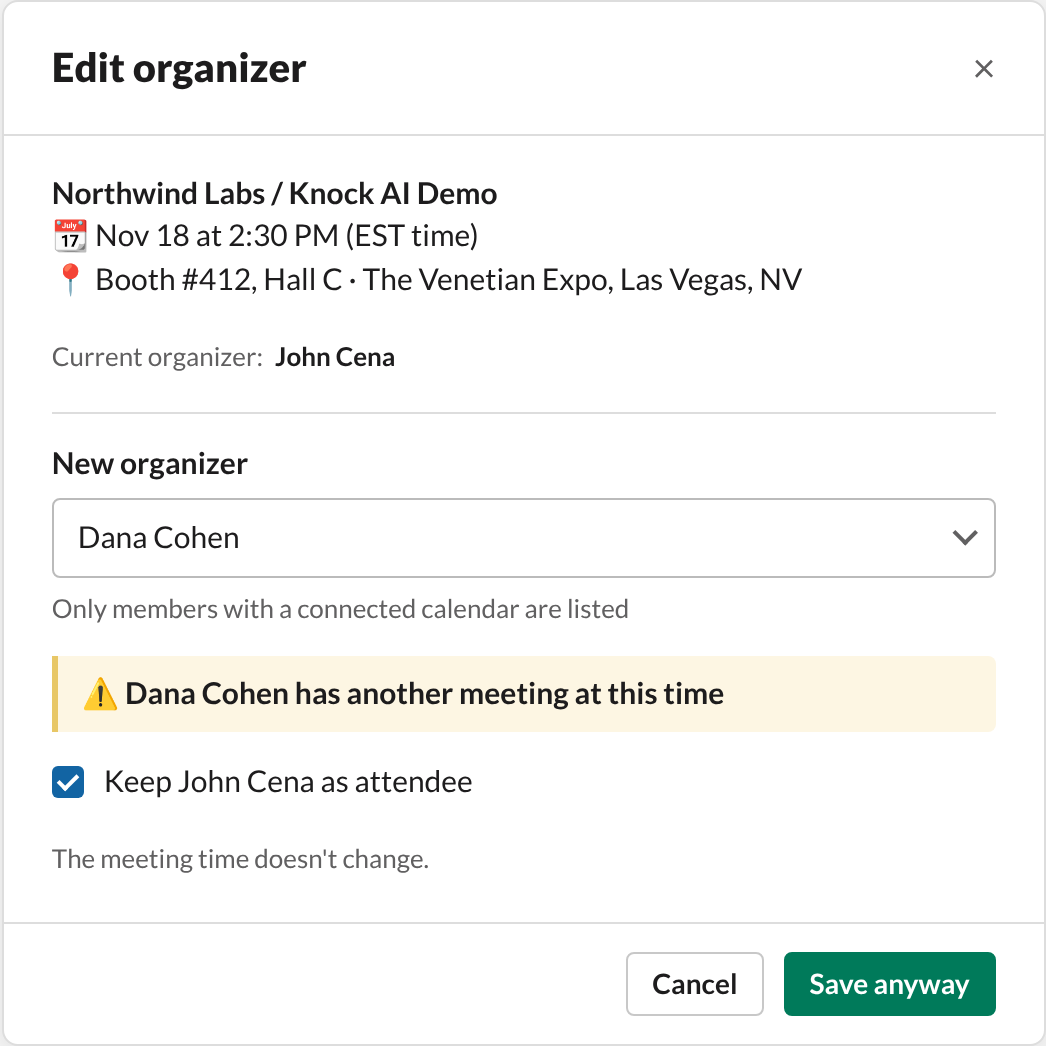
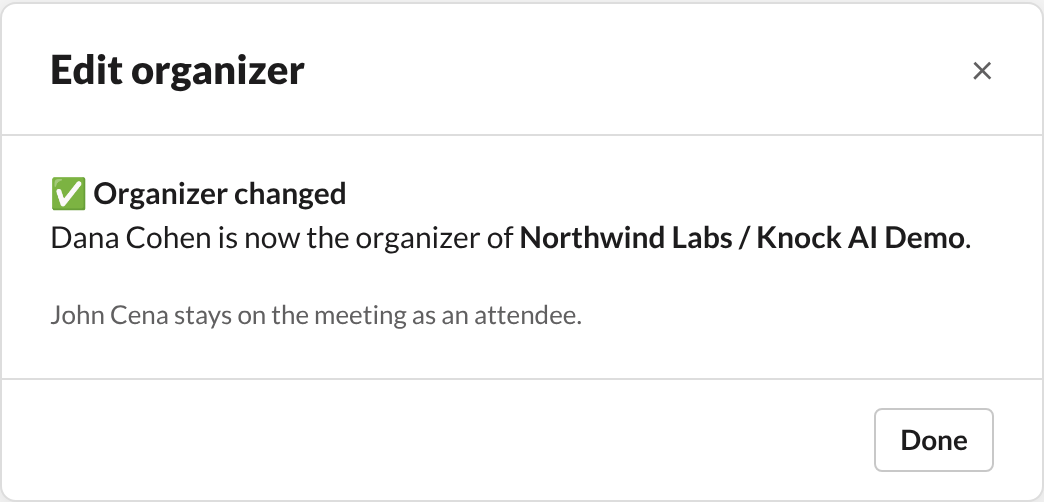
What happens next:
- The calendar event moves to the new organizer. The meeting time doesn't change.
- The meeting link is updated everywhere it shows - the event, the agenda, the emails and the card. Join meeting links in emails that were already sent keep working.
- Meeting Owner on the card and in your CRM changes to the new organizer.
- The new organizer is notified in Slack and gets the invitation email, and all following emails come from them.
- The thread shows who made the change.
Good to know:
- Available for Google Calendar meetings only. For Outlook meetings Edit organizer is not available.
- Only shows for meetings that haven't happened yet.
What's in the thread
The card's thread is the meeting's activity log. Updates are posted in order, one line each, so you can see what happened and when without leaving Slack.
On this page
- The Meeting Booked Slack Card: What It Shows and What You Can Do
- Where the card is sent
- What the card shows
- Lead
- Meeting details
- Session data
- Company
- Work experience (optional)
- What you can do from the card
- Join the Meeting
- Reschedule
- Add members
- Cancel
- More actions (··· menu)
- Edit Details
- Edit organizer
- What's in the thread